Restock and adjust stock
See what is running low, receive a delivery, correct a count and follow every stock movement of a product.
-
Step 1 of 4
See what needs attention
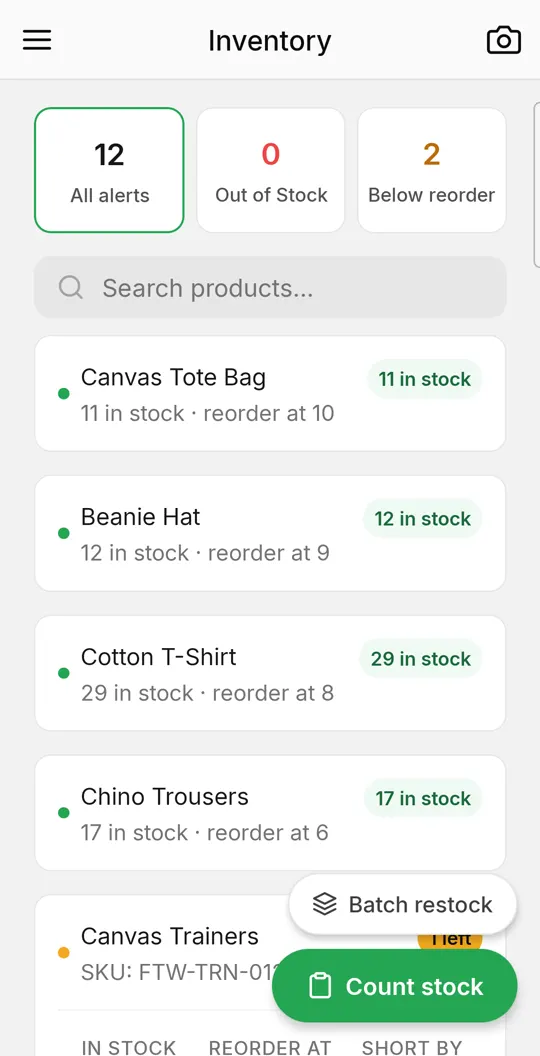
Open Inventory from the menu. The top cards count all alerts, products out of stock and products below their reorder point. Search, or tap a product.
-
Step 2 of 4
Open a product’s stock
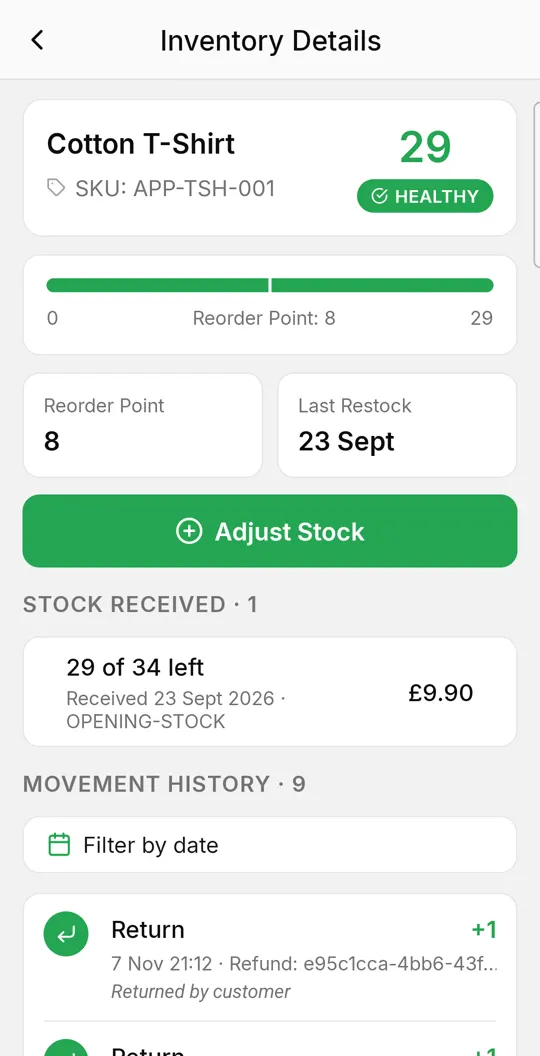
You see the stock level against the reorder point, the deliveries received with their cost, and the full movement history: sales, returns, restocks, corrections. Tap Adjust Stock.
-
Step 3 of 4
Add or remove stock
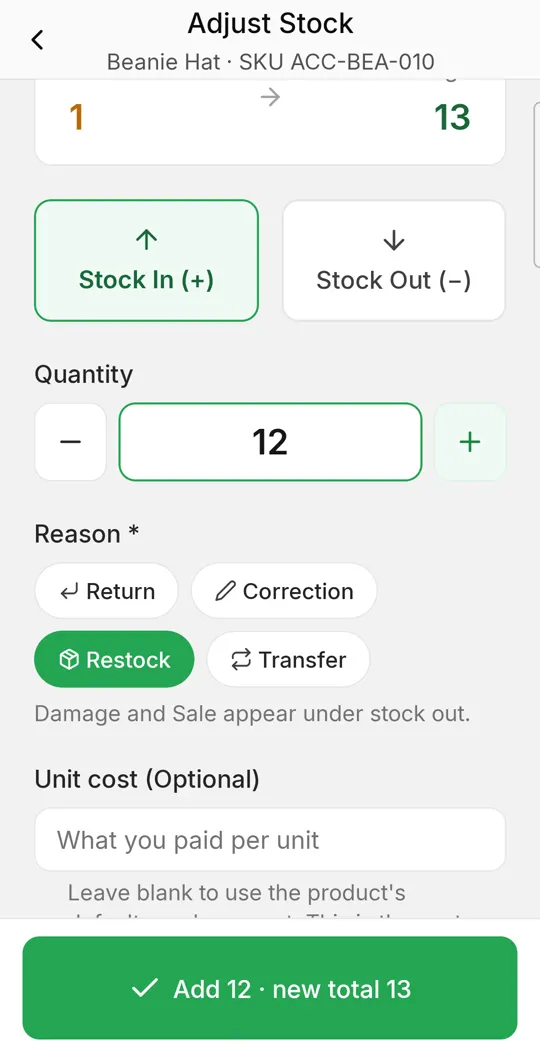
Choose Stock In (+) or Stock Out (−), the quantity and a reason: Return, Correction, Restock or Transfer (damage and sale are under stock out). Add what you paid per unit if you know it. The button shows the new total before you save.
-
Step 4 of 4
Receive a delivery
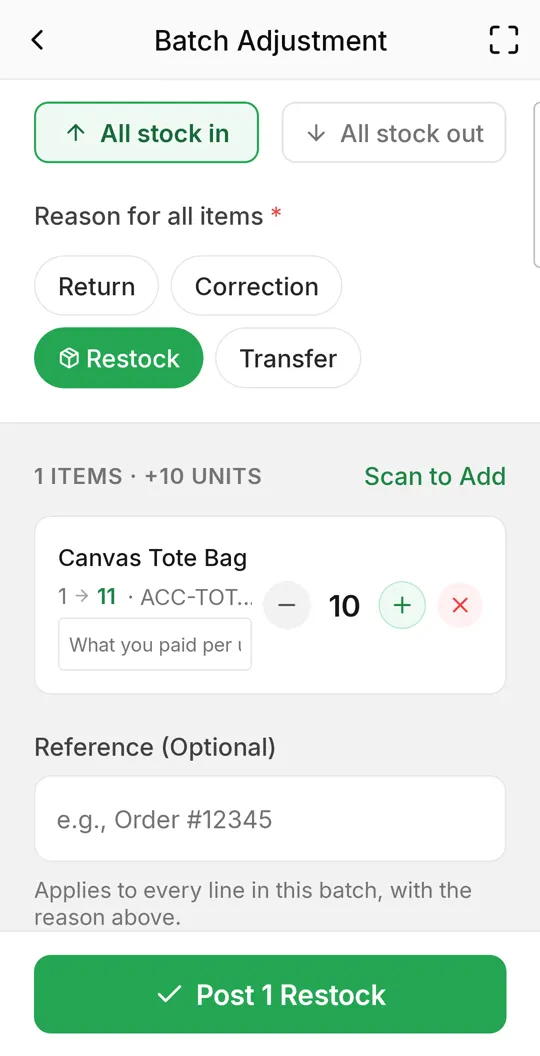
For several products at once, tap Batch restock on the Inventory screen. Pick one reason for all, add the products by scanning or searching, set each quantity, add the supplier’s reference and post.