Customers, discounts and held orders
At the till: put a customer on the sale, give a discount on one item and park an order to finish it later.
-
Step 1 of 5
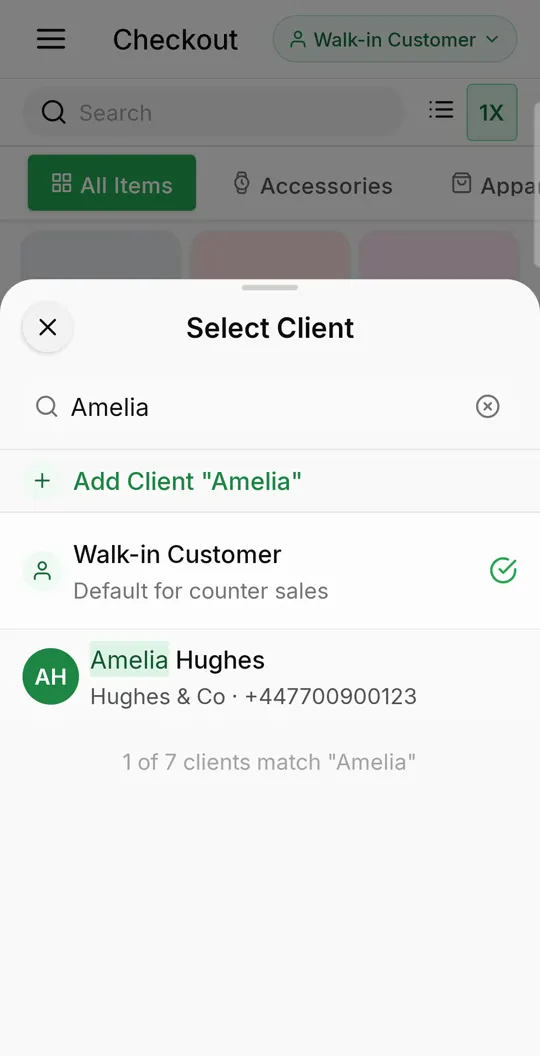
Choose the customer
At the top of Checkout, tap Walk-in Customer. Search by name or phone and tap the customer, or tap Add Client to create one on the spot. Leave it on Walk-in Customer for quick counter sales.
-
Step 2 of 5
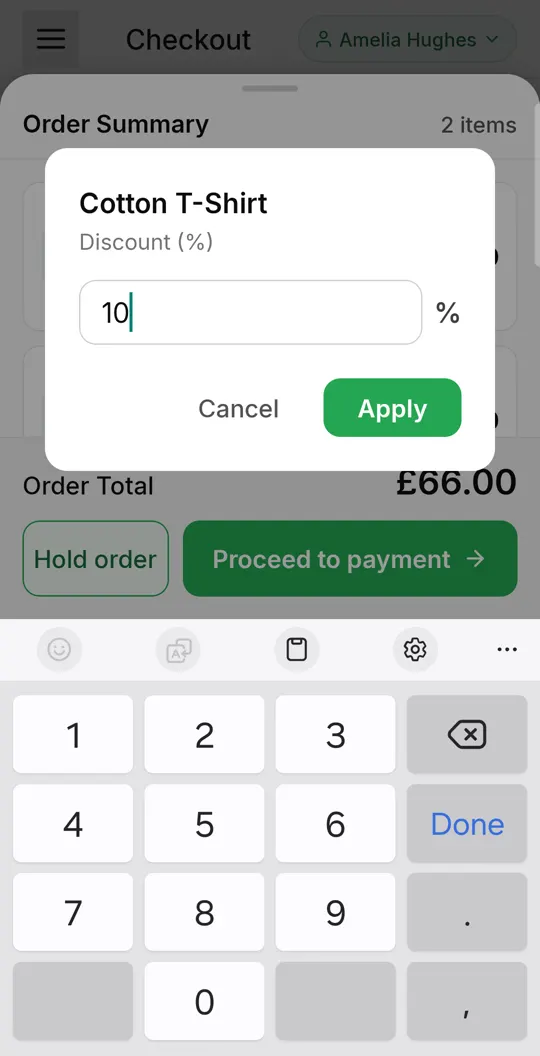
Give a discount on one item
Tap the green cart bar, then Add Discount under the product. Type the percentage and tap Apply.
-
Step 3 of 5
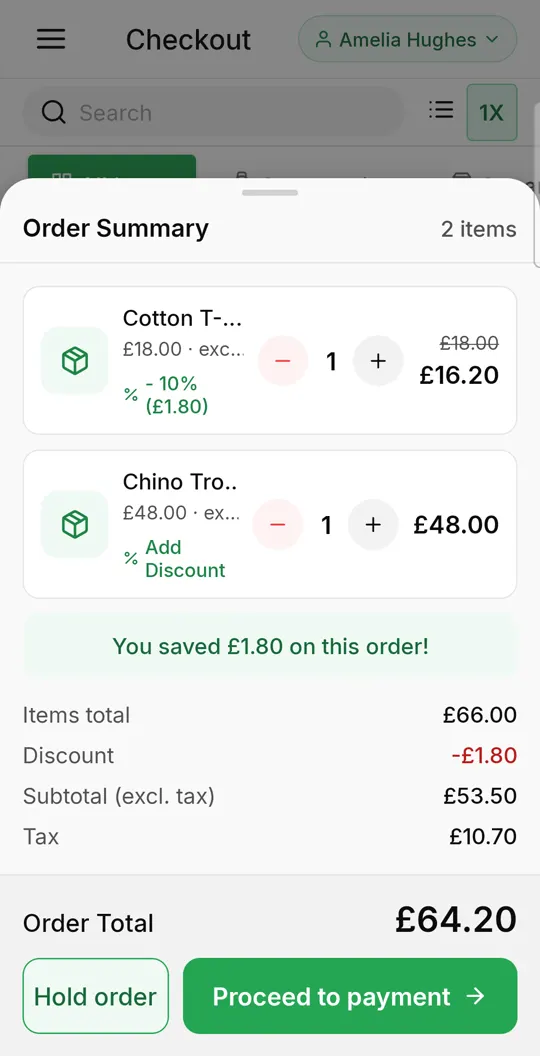
Check the total
The cart shows the old price crossed out, how much the customer saves and the new total, with tax worked out for you.
-
Step 4 of 5
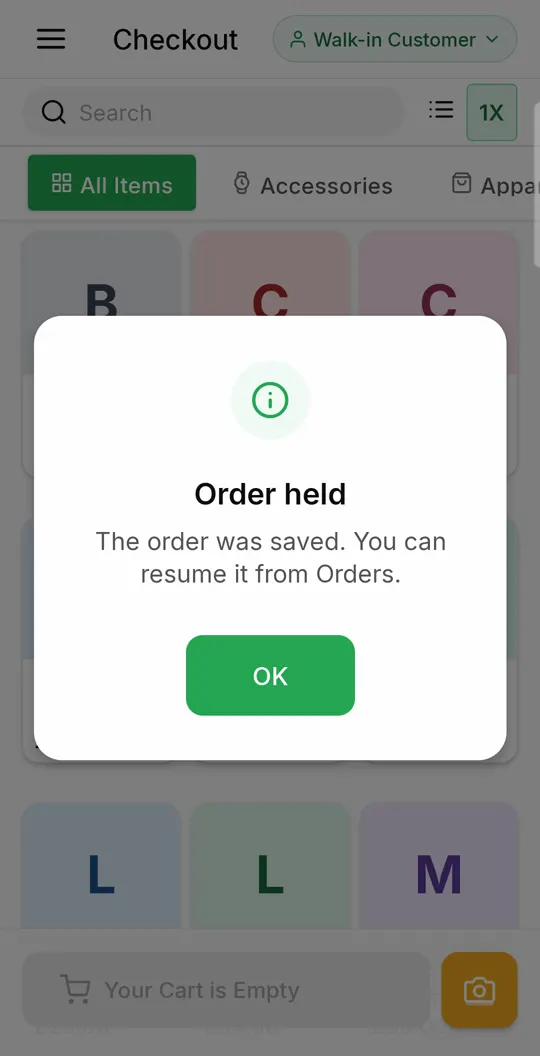
Hold the order
Customer gone to fetch something? Tap Hold order. The order is saved and the till is free for the next customer.
-
Step 5 of 5
Pick it up again
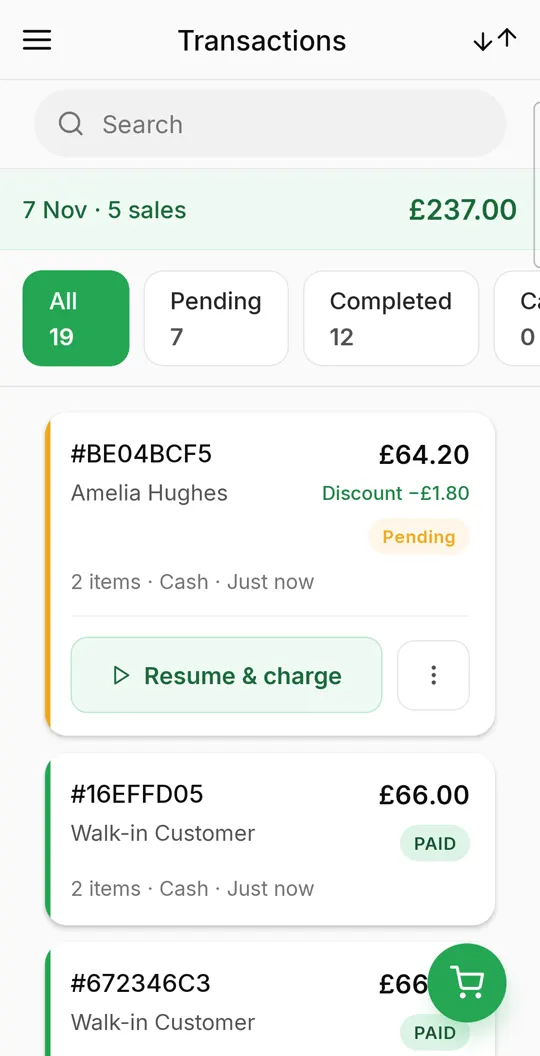
Open Orders from the menu and tap the held order (it is marked Pending). Tap Resume & charge to bring it back to the till and take the payment.