Add a product
Add a product to Numou with just a name and a price, count your stock or sell without counting, and add a barcode, category or photo when you want.
-
Step 1 of 4
Open Products
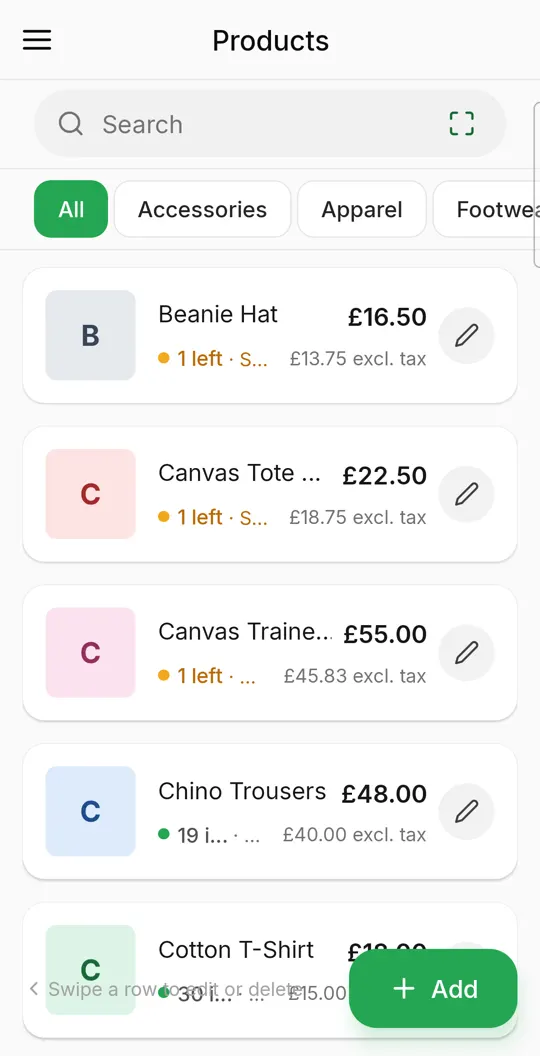
Open the menu (☰) at the top and tap Products. Your products are listed with their price and how many are left. Tap Add at the bottom.
-
Step 2 of 4
Enter a name and a price
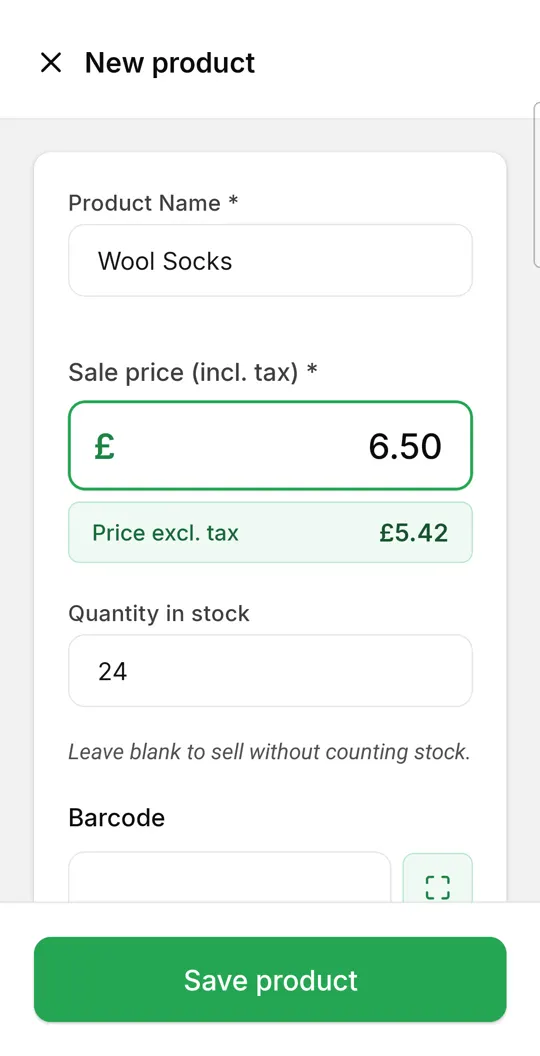
Only the name and the sale price are required. The price is what the customer pays, tax included; Numou shows the price without tax underneath. Type how many you have in Quantity in stock — or leave it blank to sell the product without counting stock.
-
Step 3 of 4
Add more details if you want
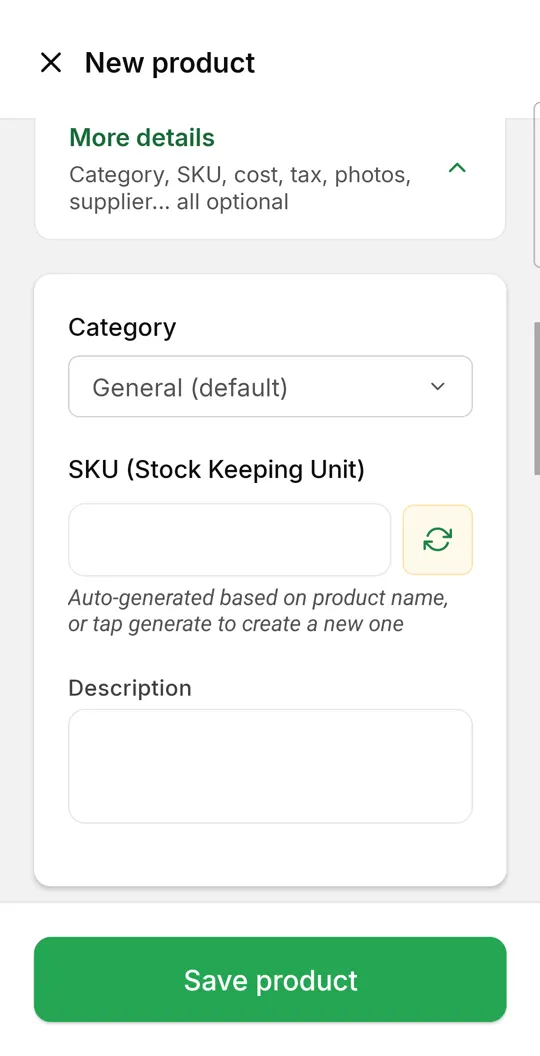
Tap More details for the category, SKU, description, purchase cost, tax, photos and supplier. Everything there is optional. To add a barcode, tap the scan icon next to Barcode and point the camera at it. Then tap Save product.
-
Step 4 of 4
Change it later
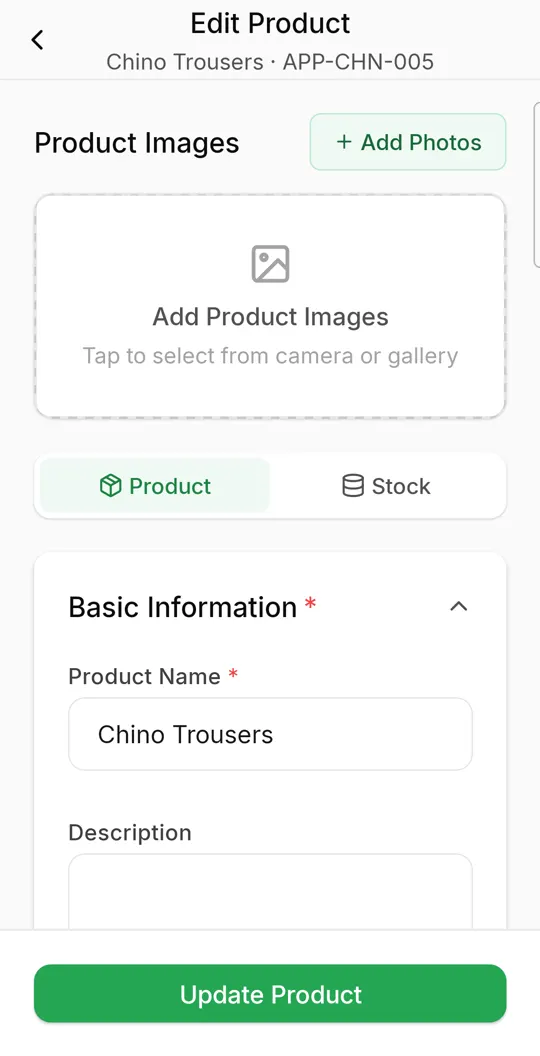
In the list, tap the pencil next to a product to change its price, stock or photos, then tap Update Product.